
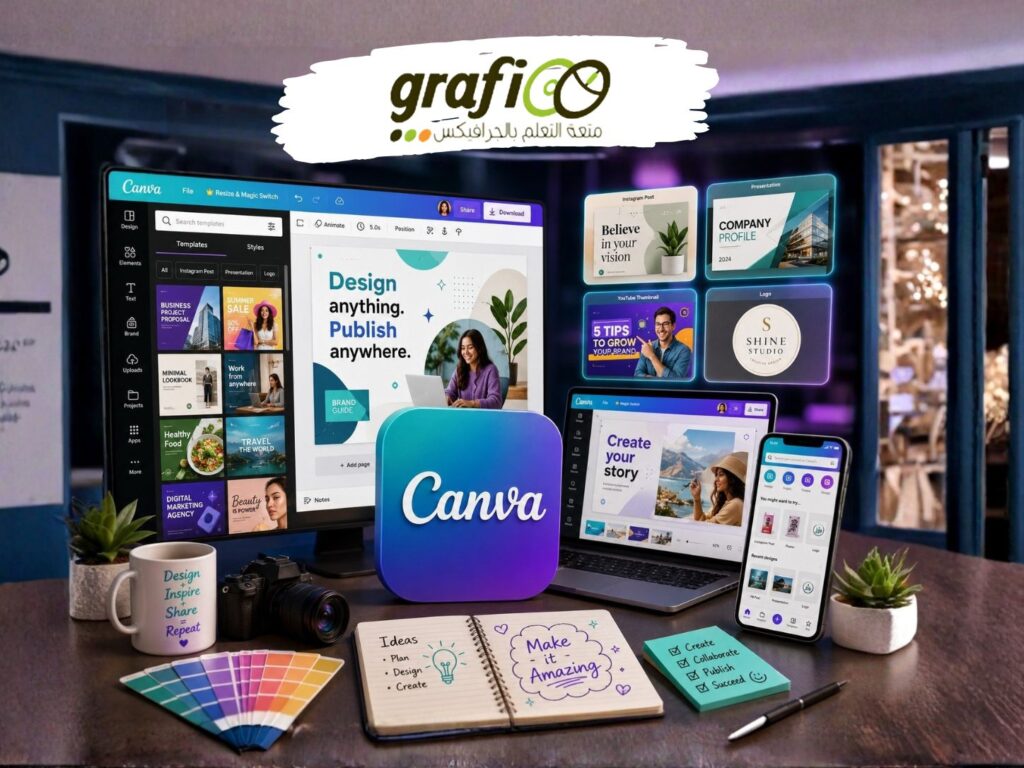
Canva
Description
Canva Essentials
-
Getting Started
- Creating designs using templates
- Designing from scratch
- Designing websites
- Using the Frontify app
- Using the Bynder app
- Using the Brandfolder app
- Using the Google Drive app
- Get to know the glowed up homepage and editor
- Get quick help with Canva’s AI-powered assistant
-
Pages
- Add, delete, add notes and more to design pages
- Copying pages from one design to another
- Using page transitions
- Applying, changing, or removing animations
- Resize designs
- Page view settings
- Page orientation
-
Templates
- Creating designs using templates
- Creating designs in bulk
- Changing templates
- Designing websites using templates
- Publishing designs as brand templates
- Managing brand templates
- Using brand templates for teams
- Trademarking logos created on Canva
- Using layouts
- Finding color palettes and font combinations
- Discover and follow Canva Creators
-
Designing with AI (Magic Studio)
- Using AI image generation apps
- Erasing or retouching photos
- Using Magic Edit to add, replace, and modify photos
- Using Magic Write to generate text
- Generting unique designs instantly with AI
- Using Magic Design to generate Presentations
- Using Magic Design to create a video
- Syncing audio with video
- Translating your Canva designs
- Applying animations instantly
- Drawing lines, shapes, diagrams, and more in Canva
- Using Magic Morph
- Selecting and changing the text in your photos with Grab Text
- Making your photo selectable and customizable with Magic Grab
- Using Magic Media to create Photos and Videos
- Expanding images
- Transforming your designs into a doc
- Magic commands
- How to use Magic Studio safely and legally
- Create your own writing style using Magic Write
-
Images
- Adding images
- Uploading and importing videos from your computer or phone
- Importing images and videos from social media or cloud storage
- Flipping and rotating images
- Resizing and cropping images
- Adjusting image settings
- Adjusting image transparency
- Applying filters to images
- Applying effects to images
- Applying, changing, or removing animations
- Copying image style
- Removing image backgrounds
- Upload requirements
- Canva image editor
- Adding and searching tags on uploaded images
- Importing images from Sharepoint
- Importing images from Widen
- Uploading and editing photos in bulk
- Replacing all logos or images in multiple designs
- Finding images using keywords
- Brush gestures
-
Elements
- Adding elements
- Adding borders
- Adding, editing, and formatting charts
- Adding advanced charts via Flourish
- Adding frames or cropping to a shape
- Adding and editing shapes
- Adding and editing grids
- Adding and deleting tables, rows, and columns
- Changing table borders, cell colors, and row or column size and fit
- Merging and unmerging table cells
- Changing element colors
- Applying, changing, or removing animations
- Copying element style
- Resizing and cropping elements
- Locking and unlocking elements
- Adjusting element transparency
- Flipping and rotating elements
- Moving text, elements, images, and videos in your design
- Layering, grouping, and aligning elements
- Connecting lines to elements
- Purchasing paid or Pro elements
- Removing watermarks from elements
- Starring favorite elements
- Finding and arranging layers in your design
- Adding, unlocking, and removing guides
- Adding borders and rounded corners to elements
- Using dot charts
-
Canva Docs
- Getting started with Canva Docs
- Viewing Canva Docs insights
- Converting Canva Docs into presentations
-
Backgrounds
- Adding backgrounds
- Using Dropbox images as backgrounds
- Adjusting background image settings
- Adjusting background image transparency
- Applying filters to backgrounds
- Applying effects to backgrounds
- Copying background style
-
Text and fonts
- Adding and editing text
- Formatting text
- Curving text, adding shadows, and more
- Uploading fonts
- Resizing a textbox
- Rotating a textbox
- Wrapping text
- Applying, changing, or removing animations
- Adjusting text transparency
- Copying text style and format
- Adding and removing hyperlinks
- Setting up brand fonts
- My lines, text, or images moved after download
- My text doesn’t display properly
- Hyperlinks aren’t working on text effects
- I’m getting a font upload error
- Font editing issues
-
Audio
- Adding audio tracks and sound effects
- Adding popular music to designs
- Adjust volume, trim, and clip audio tracks
- Purchase and get licenses for Pro audio tracks
- Uploading images, videos, and audio from your device
- Managing uploaded images, videos, and audio
- I got a content ID claim about audio from Canva
- How to extract audio from your video
-
Videos
- Adding and replacing videos on designs
- Creating and editing videos
- Trimming videos and changing scene duration
- Editing element timing in your designs
- Using page transitions
- Autoplay, loop, or adjust the speed of a video
- Uploading and importing videos from your computer or phone
- Adding and searching tags on uploaded videos
- Recording videos in the editor
- Recording and deleting talking presentations
- Importing images and videos from social media or cloud storage
- Resizing and cropping videos
- Rotating videos
- Adjusting video transparency
- Downloading designs as video or GIF
- Download video as separate files
- Upload requirements
- Images disappear when I download my video
- I can’t download my design or video
- My video won’t playback
Canva Advanced
-
Websites
- About Canva websites
- Designing websites
- Adding a navigation menu to Canva websites
- Publishing Canva websites
- Publishing your website to a free domain
- Changing website slug, favicon, and other settings
- Purchasing domains to publish websites
- Connecting your own domains to publish websites
- Website insights
- Unpublishing websites
- Managing and disconnecting domains
- Setting up Website DNS records
- Renewing expired Canva domains
- My website stopped working
- My domain DNS records are still pending
- My website looks different on mobile
- Domain refunds
- Changing your domain’s nameservers
- Transfer your domain to another registrar
- Optimizing the searchability of your Canva website
- Changing the name of free Canva domains
- I want to remove the “designed with Canva” watermark on my published website
- Adding, editing, or deleting your domain’s DNS records
- Editing your domain contact details
- Redirect your domain to another website
- Protecting your domain
- Setting up a business email address
-
Whiteboards
- Expanding slides to whiteboards
- Setting a timer
-
Brand Kit and Brand Control
- Setting up Brand Kit
- Setting up and using Brand Kit color palettes
- Uploading and using Brand Kit fonts
- Setting up and using brand fonts
- Uploading brand logos
- Adding and removing Brand Kits to a folder
- Setting up brand control
- Setting up design approval settings
- Getting design approval
- Approving or giving feedback to designs
- Brand controls for designs inside a folder
- Find and manage brand assets in one place
- Checking the quality of designs and prints
- Storing and finding Brand Templates
- Setting up your team’s brand voice
- Managing design approval for specific brand templates
- Setting up design approval for organizations
-
Canva Apps
- Connecting apps to Canva
- Creating QR codes
- Using Background Remover
- Using image effects
- Using publishing apps
- Using import media apps
- Using embed media apps
- Setting up and using team apps
- Disconnecting linked accounts, services, and apps
- Getting started with the Canva Desktop App
- Canva Desktop App basic how-tos
- Importing images from Sharepoint
- Importing images from Widen
- How app permissions work in Canva
- Using D-ID AI Presenters
- Creating interactive flipbooks using Issuu
- Customize text with TypeCraft
- Creating music with Soundraw
- Add voiceovers to your designs using Murf AI
- Add voiceovers to your designs using AiVOOV
- Creating vector illustrations with Illustroke
- Accessing your Frontify assets in Canva
- Creating artistic QR codes with Hello QArt
- Using the Monday.com app
- Using the HeyGen AI Avatars
- Creating artistic QR codes with Hello QArt
- Using the Asana app
-
Managing designs and folders
- Renaming designs
- Duplicating designs
- Transferring designs between teams and accounts
- Copying designs or files before graduating
- Moving designs to folders
- Trashing and permanently deleting designs
- Recovering designs from trash
- Recovering designs from deleted teams
- Creating folders
- Adding and removing designs from folders
- Sharing folders with people in your team
- My design has gone missing, I can’t find it
- Commenting on designs
- Renaming, moving, sharing, and deleting folders
- Pin designs, templates, subfolders, and more to a folder
- Restrict design sharing
- Create courses in Canva
- Managing your team’s content as a team administrator or owner
- Completing your course in Canva
- Starring contents for your team
- Star your favorite designs, folders, and Brand templates
Register
Review
Login to Write Your ReviewThere are no reviews yet.